Your link
Your link is how Mooting knows who you are. There's no password and no account. It came to you by text or email, so we know the number or address is yours, and that's all the checking we need.
Open it and you'll see your board. If you're on more than one event, you'll see a list of them instead. Pick one.
It only opens in your browsers
Your link only opens your board in your own browsers. If someone else opens a copy of it, Mooting asks who they are.
Every link Mooting sends you has a one-time pass on the end. Tap it and that browser's yours from then on. The pass drops off the address straight away, so if you copy the link out of your address bar and paste it somewhere, it's just your plain link.
Open a plain link in a browser that isn't yours, and you'll see one of these:
- This is Ann's link. The browser belongs to somebody else on Mooting, say Bob. It tells him whose link it is and gives him a button to his own board. Underneath there's I'm Ann, not Bob, for a shared computer.
- Is this you, Ann? Nobody's used Mooting in this browser. Tap Yes and we'll send a 6-digit code to one of Ann's confirmed numbers or addresses. Type it in and you're in. Tap No and you get the event's shared link instead, where you can find your name or ask to join.
Either way, nobody sees a thing of Ann's but her name.
Want to bring someone along? Send them the event's shared link. An organiser's got it, and it's safe to post anywhere, because it doesn't let anyone in as anybody. See Joining an event.
Your events is at the top right of every page of yours, so your list of events is always one tap away. On a phone it just says Events. Next to it are your figure and name. Tap them and you get a menu: your settings, help, a Theme switch, and Not you? Forget this device at the bottom (more on that below). Theme starts on Light. Pick Dark if you prefer, or Device to follow your phone or computer's own setting. There's more in The road.
Every message carries it
Every email from Mooting ends with your current link. WhatsApp and Discord messages have it on a button. So you don't really need to keep it anywhere: the latest one you got will always get you back in, in any browser, thanks to its pass. Texts are the odd one out. They never have a link in them (see below).
Emails also have a second line, Change how you're reached, or stop everything. That takes you to Your settings (see How you're reached).
If you lose it
Go to the front page and use Got a link from a friend? Get it again. It's above Start an event. Don't start an event by mistake!
Give it the mobile number or email address Mooting knows you by, and it'll send you your link. It's the same link you had, so it still works wherever else you've got it: ask for it on your phone and your computer keeps working. If Mooting only knows your number through WhatsApp, the link comes by WhatsApp.
You'll get the same answer whether it found you or not. That way nobody can use it to find out who's on an event.
Got a code instead of a link?
Phone networks often block texts with links in them, so Mooting never puts a link in a text. It texts you a 6-digit code instead. Go to mooting.app, tap Got a code?, and type in your number and the code. You're in, just as if you'd tapped a link, and this browser remembers you.
A code works once, and for 14 days. Asking for another one replaces it. Five wrong tries and it stops working, so ask for a new one with Get it again, which texts a new code to those numbers. A code doesn't change your link, so anything else you've got still works.
If your link gets out
Pasted it into a group chat by mistake? Go to the Privacy tab of Your settings and tap Replace my link. It asks you first. Then your old link stops working everywhere, on every device, and we send the new one to your confirmed numbers and addresses. The browser you did it in remembers the new one, so you can carry on.
Any other browser or phone that remembered the old link just forgets it. Open the old link and you'll get a page saying That link doesn't work, with a form on it to ask for your current one.
If you've no confirmed number or address, make sure you keep the new page's address, because that's your new link.
Replace my link also signs out every other browser (see below), so they'll need a code again.
Get it again never does this. It sends the link you've got, so it can't lock you out of your other devices.
A link to an event you've left still opens. It tells you you've left, and gives you Ask to join again. If an organiser deleted the event, it says This event has been deleted by its organiser and points you to your other events. Your link still works for those.
Checking a browser
The first time you open your link in a new browser without a pass (an old message, say, or one you typed in), you'll see Is this you? and then Check it's you. Mooting sends a 6-digit code to one of your confirmed numbers or addresses, email first. Type it in and that browser won't ask again. A code works for 15 minutes, and five wrong tries wears it out, so send a new one.
No confirmed number or address to send it to? Ask an organiser to send you a fresh link. It'll have a pass on it.
You won't be asked in the first browser that ever opens your link, or in one that already had it open before this came in.
Organisers get asked once more. Organiser pages (People, Event settings, Edit, Preview as and so on) show other people's details, so the first time you open one in a browser that hasn't had a code, a pass, or Got a code?, you'll see Check it's you. You won't be asked in the browser you started an event in, or in the first browser that opens a link sent to you in the last hour.
Browsers you've used, on the Privacy tab of Your settings, lists every browser your link opens in, with Sign out next to each and Sign out everywhere else. Sign a browser out and your link won't open anything of yours there until it's checked again with a code. If your link's got out, use Replace my link too.
Coming back in the same browser
Once you've opened your link, that browser remembers you. Type mooting.app into it and the front page says Welcome back, with your name, and an Open your events button.
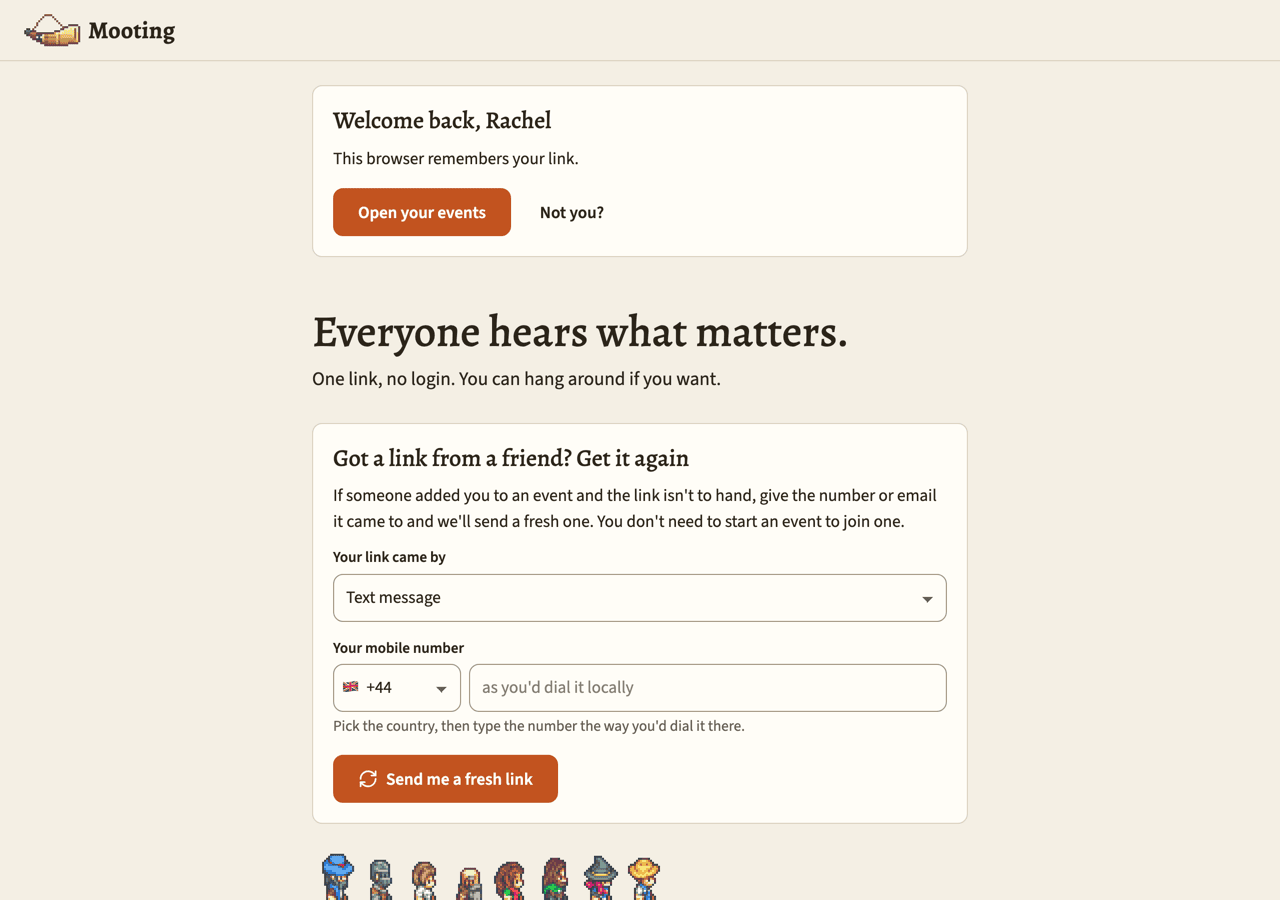
It always asks first; it never just takes you in. That's so someone else using the same browser can see whose it is, and tap Not you? if it isn't them.
The browser forgets you after about a year without a visit. It forgets you straight away if you replace your link somewhere else or delete yourself. A private window, or a browser that clears its data, won't remember you at all.
Other ways back in:
- Wait. The next announcement, mention or reminder will have your current link in it.
- Got a new number? Add it yourself on the How you're reached tab of Your settings while your old link still works, and your link gets sent there. An organiser can type a new number in for you on the People page, but since you've already got a link, nothing is sent to it until you add it yourself under Add another. Your link stays the same when your number changes.
On your phone's home screen
You can add Mooting to your home screen from your browser's share or install menu. Opened from there, it remembers the link you last used and goes straight to your events.
Only the home-screen version does that on its own. A browser always asks first (see above), because it might be shared with other people.
Add it from your own link, not from the front page, and the icon opens your board every time. On iPhone that's the only way it'll know which board is yours, because the home-screen app can't see what the browser remembered.
On iPhone the home-screen app keeps its own cookies, apart from Safari's. So the first time you open it, it might ask Is this you?. Tap Yes, type in the code, and it won't ask again.
Forgetting this device
Handing your phone or computer on? Or someone else is using yours? Forget this device makes the browser (and the home-screen app) forget your link, and takes you to the front page, so the next person can ask for their own.
You'll find it:
- at the bottom of the menu under your figure and name, on every page of yours and on the help pages;
- on the Privacy tab of Your settings;
- as Not you? on the front page's Welcome back card.
Your link still works. Open it from your next text or email and you're straight back in. Open an old one and this browser asks Is this you? first. For exactly what the browser keeps, see Privacy.