The board
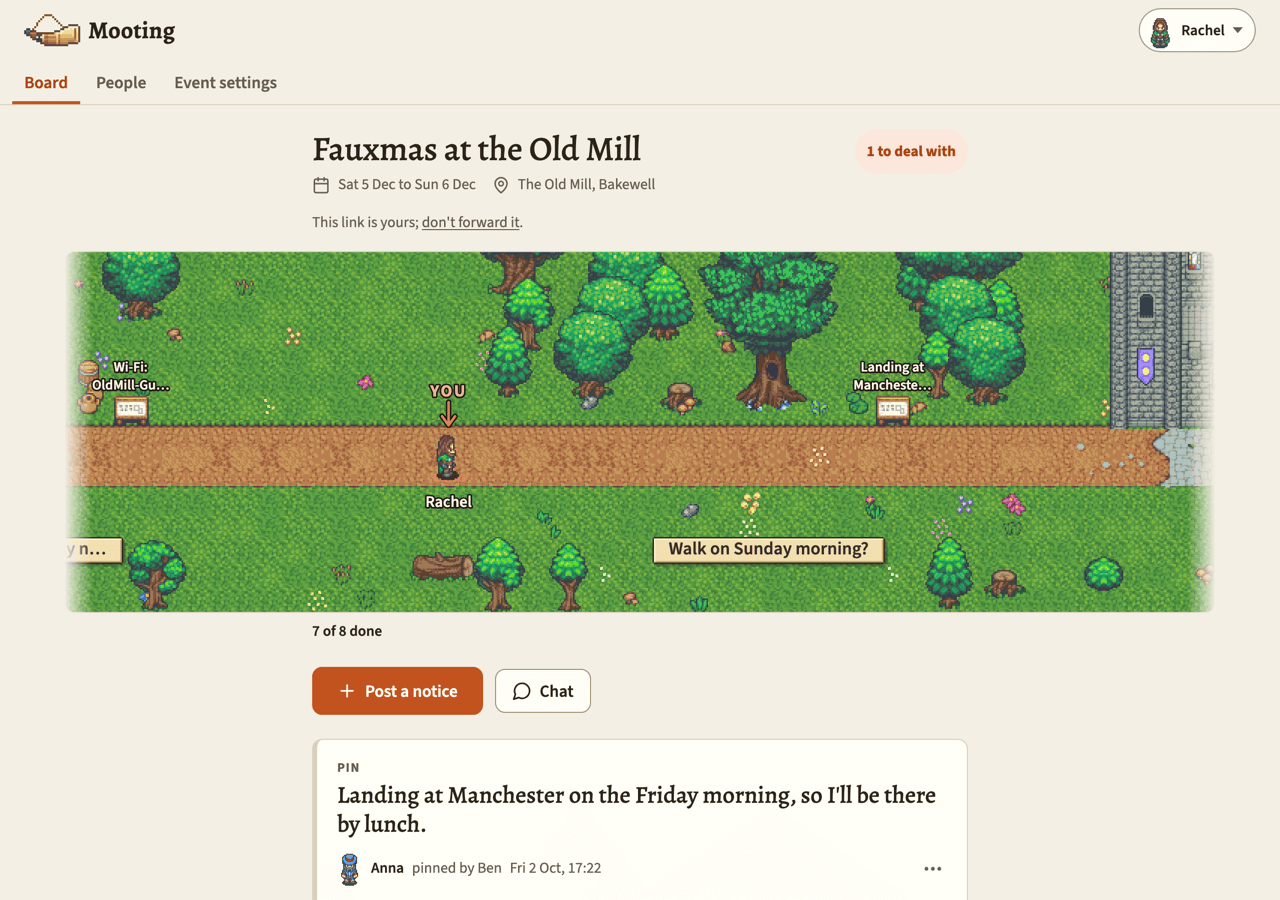
The board is the one thing you need to read. It's every notice for an event, newest first, under the drawing of the road.
At the top are the event's name, its dates and venue, and, if the organiser wrote one, a line or two about it.
The very first time you open a board, there's a welcome above all that, with the figure Mooting gave you. Tap Keep this one, or Pick another to choose a different one. Either way you won't see it again. You can still change your figure any time in Your settings.
Four kinds of notice
- Pin. Something put up quietly. Nobody was told; it's just there next time you look. Nothing's asked of you.
- Announcement. Something that matters. You'll have been sent it, and it waits for you to tap Got it.
- Question. Like an announcement, but with options to choose from. It waits for your answer, and you might get a reminder or two until you answer or it closes.
- Action needed. Something you're asked to go and do, like paying the deposit. It waits until you tick Done, and if it has a date you might get a reminder or two until you do.
Each notice says what kind it is in small letters at the top, and who it's from at the bottom. If it started life as someone's chat message, it's theirs, with whoever put it on the board after it: Tom, pinned by Rachel.
Got it, and answering
An announcement has one button: Got it. Tap it to say you've read it. That's all it does. The notice then says ✓ Got it.
A question shows its options as rows. Each has a count at the end and is shaded by its share of the answers so far. Tap a row, then Answer.
Once you've answered, the notice says ✓ You answered: …. You can change your mind until the question closes: tap a different row, then Change my answer. After it closes, your answer's fixed.
Picking more than once
Some questions let you pick more than once, the same option too. Meal choices, say, when you're choosing for your kids as well. The question says so under its title: Pick as many as you need, more than once if you're choosing for others too.
Each option has a number with − and + beside it. Add one for each person you're choosing for, so two chicken and one veggie is 2 next to Chicken and 1 next to Veggie. Then press Save. The notice says ✓ You picked: Chicken ×2, Veggie.
You can change your numbers until the question closes. Press Save again and the new ones replace the old. You can't save with everything at nought, though: once you've answered, you've answered, just like an ordinary question.
The number at the end of each row is everyone's picks of that option added up, and the line underneath says how many picks from how many people, like 12 picks from 7 people.
Got it, and Done
An action has two buttons, Done and Got it. Got it says you've seen it and you're on it. The notice then says ✓ Got it, not done yet, and it's still waiting on you. Done says you've done it, and the notice says ✓ Done. You don't have to tap Got it first.
Tapped Done by mistake? Not done after all puts it back. An organiser can tick it for you too, when your money's arrived, say. Then it says Done. Rachel ticked it for you.
An action can have a date: Do by Sun 18 Oct, 18:00. If that goes by, it doesn't close. It says This was due Sun 18 Oct, 18:00. You can still tick Done.
Whoever posts an announcement counts as having read it, so they don't have to tap Got it on their own notice. Questions are different. Nobody's answer is assumed, not even the asker's. Whoever posts an action has seen it, but they might have it to do as well, so it waits for their Done too.
What's waiting on you
If something's waiting on you, the top right of the board says so in amber: 2 to deal with. Tap it to jump to the oldest one. If nothing's waiting, there's no count at all, and the road's caption says All done.
Anything still waiting on you has an amber edge. Everything else (pins, questions you've answered, things that have closed) stays quiet.
On more than one event? The bottom of the board lists Your other events, each with a badge: how many things are waiting on you there, or a tick. Events that are over go under Past events, without a badge.
Deadlines
A question can close at a set time. It's always shown as a date and time in the event's timezone (Closes Sun 18 Oct, 20:00.), never just as a countdown.
The asker can add a sentence about what closing means, like After Sunday I draw the names; if you haven't answered you're not in the hat. That's their own wording. Mooting never makes up a consequence.
The asker can also have a question close early, once everyone's answered.
When a question closes
Three things happen:
- The question stops asking. It says Closed, and it no longer counts as waiting on you.
- The result goes up as a pin called Result: plus the question, with the tally and the names of anyone who sat out.
- Anyone who didn't answer is marked as having sat out. Your notice says You sat this one out.
Sitting out isn't a black mark. It's just what the tally says.
Late answers
A closed question will still take an answer. Its options are tucked behind Answer late. Tap it and they open, with a note: This question's closed. You can still answer, but it'll be marked late for whoever asked.
Your answer's marked late, and it's up to them what they do with it. Late answers do count in the tally.
An organiser can also push a deadline back, which opens the question again. If you sat it out, you'll get a short note saying it's open again.
Edited notices
Whoever posted a notice, and any organiser, can edit it with the pencil button. You'll see (edited) next to the time.
A small fix goes in quietly and nobody's told. If the editor says it matters, it gets sent out again and comes back to your board as something to deal with. If you'd already answered a question, your answer's kept and shown as your choice. You're being asked to look again, not start again. If you'd ticked an action Done, it stays done.
For how editing works from the organiser's side, see Posting notices.
Taken down
A pin that's taken down (or unpinned) just disappears.
Something that was sent out leaves a single line where it was: Deposit was taken down by Rachel. You've already had a text or email about it, so it'd be worse to leave you wondering where it went.
Posting
If the event lets you, there's a Post a notice button under the road. Organisers can let anyone pin things quietly, but telling everyone is usually left to them. See Posting notices.